The first thing you do in YachtGrade is add a boat. The second is tell YachtGrade what's aboard. Get both right and every checklist for that boat starts with the right checkpoints, in the right order, with questions for its equipment and none for equipment it doesn't have.
This is the setup walk-through: adding the boat, building its equipment profile, and where the berth address and per-boat notes fit in.
Add the boat
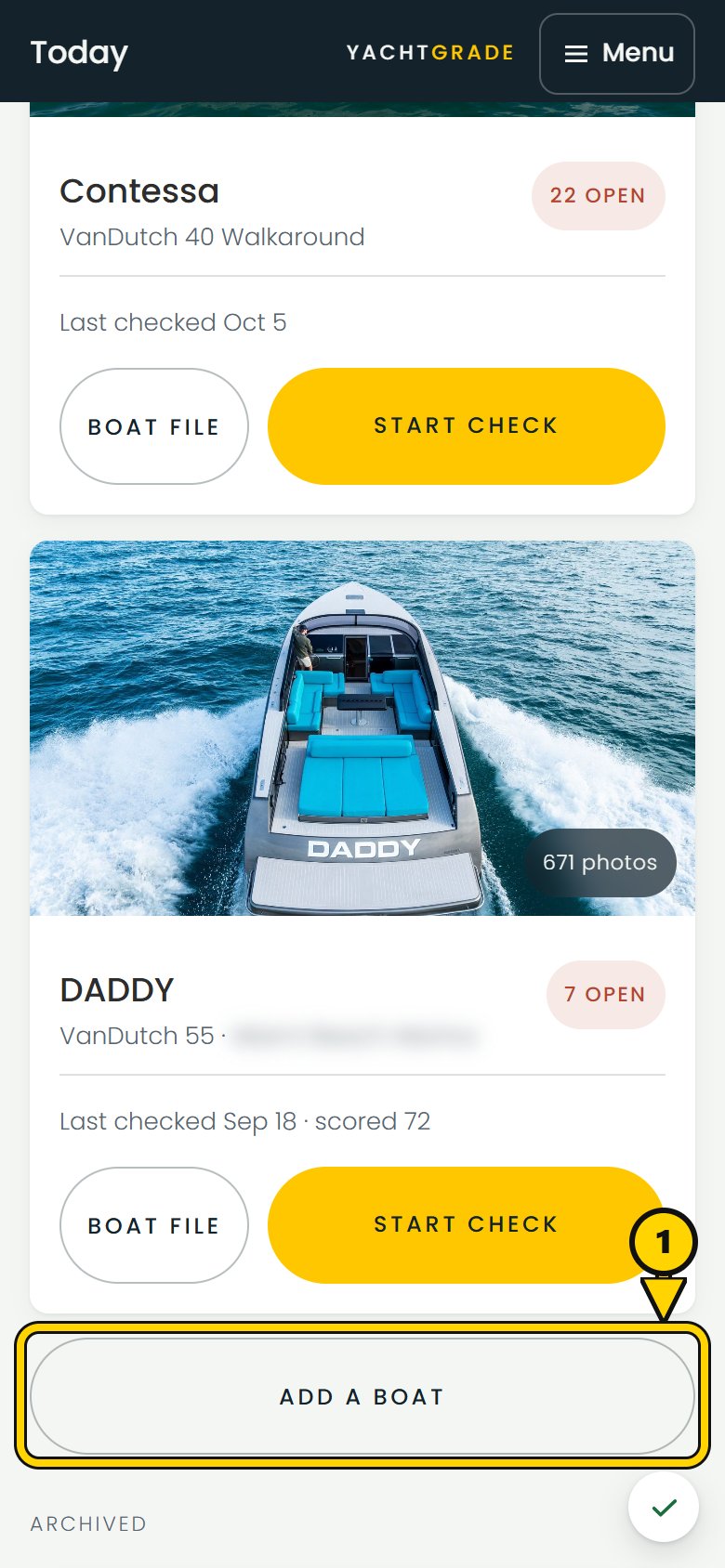
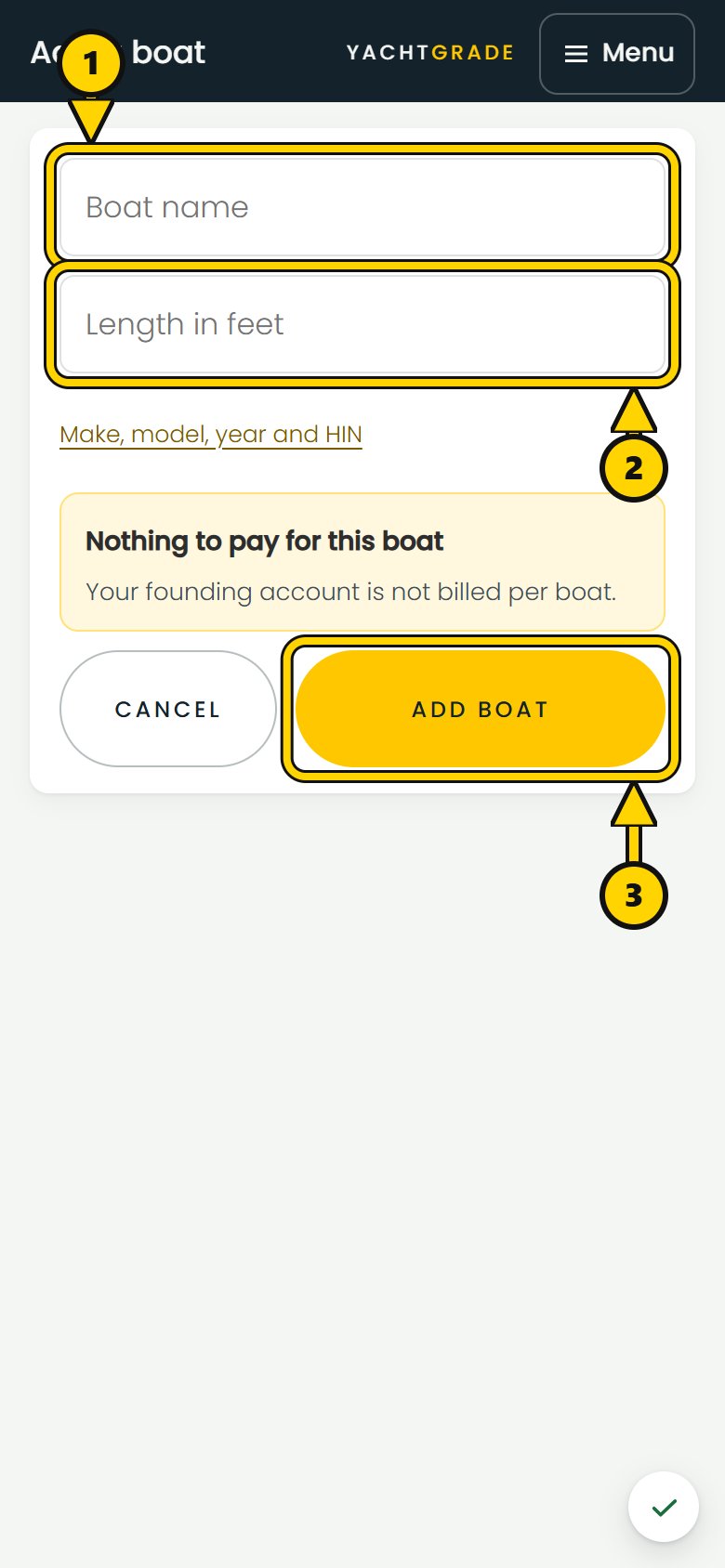
On Today, Add a boat sits below your list of boats, and the Menu has it too. It opens a short form for the boat's name and length in feet, with make, model, year and HIN one tap away under Make, model, year and HIN. Length matters more than it looks. It determines which size-class checklist the boat is built from, so get it right. You can change it later from the boat's file.
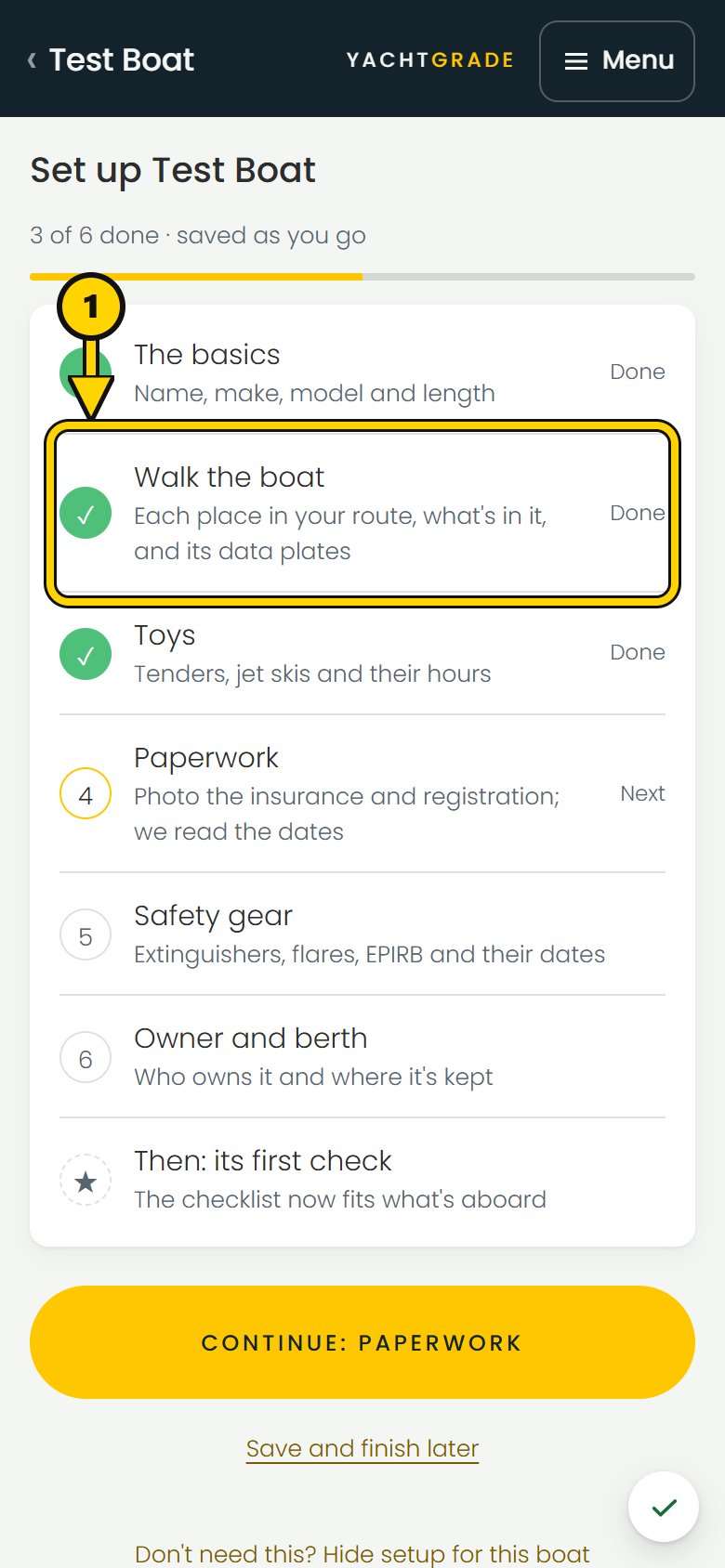
Tap Add boat and you go straight to the boat's setup list, saved as you go. The basics is already done from the form. Walk the boat comes next: tap each place as you walk through it, starting where you normally start, and confirm what's in it. The checklist follows that same route on every inspection. Toys, Paperwork, Safety gear and Owner and berth follow. A new boat's first check waits until its walk is done, because the walk is what fits the checklist to the boat. Save and finish later keeps your place.
Who can add a boat and what it costs
Adding a boat is restricted three separate ways, and they fail differently. An
owner, admin or tech can add one; a contractor or viewer can't, and there's nothing to
ask for there. Below that, an owner can grant or withhold the add_boats
permission per person, because adding a boat is also adding to the bill. And under
both of those sits your plan's own limit on how many boats it covers.
We show you the cost before you add the boat. The first 100 beta members get 5 boats free for life, with no card on file. Adding one of those boats costs nothing, and the screen says so. On a paid plan, the button shows the new monthly total before you confirm.
The equipment profile and why it matters
Every boat's checklist has three layers: universal checkpoints that apply to every hull, equipment-driven checkpoints based on what the boat carries, and boat-specific checkpoints added by hand for something unique to that boat. The equipment profile controls that middle layer from the boat's file.
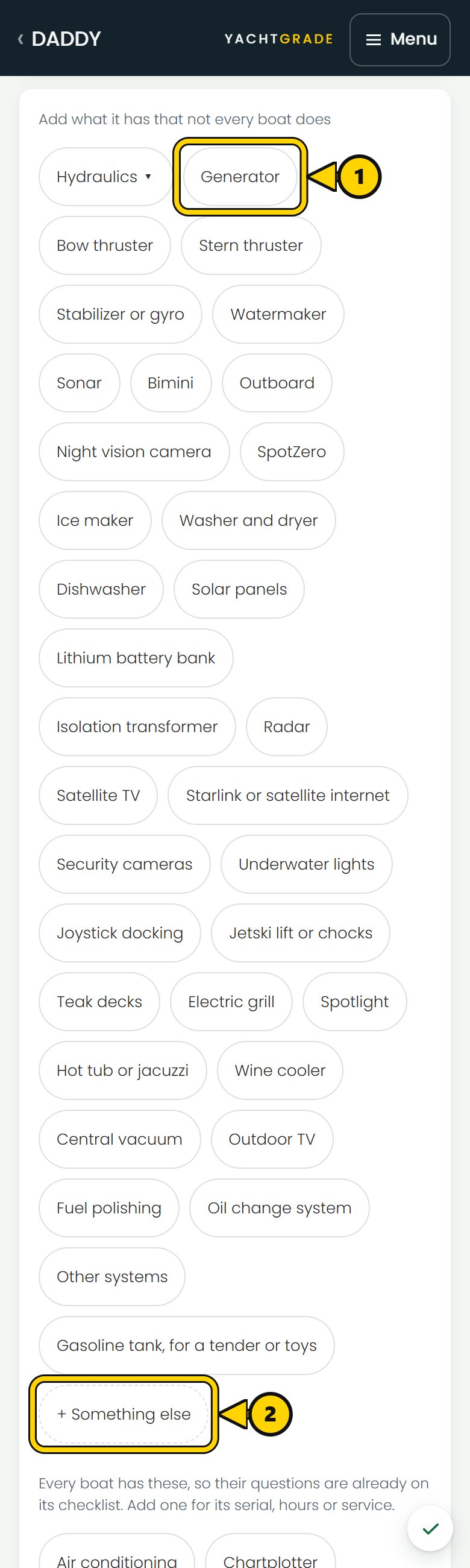
Add a generator to the boat's registry and its generator checkpoints, such as the strainer, run-under-load check and filter dates, appear on the next check. Add a Seakeeper and its gyro checkpoints and maintenance schedule appear the same way. Remove or archive a piece of equipment and its checkpoints stop appearing. One equipment entry changes both what gets asked and what gets scheduled.
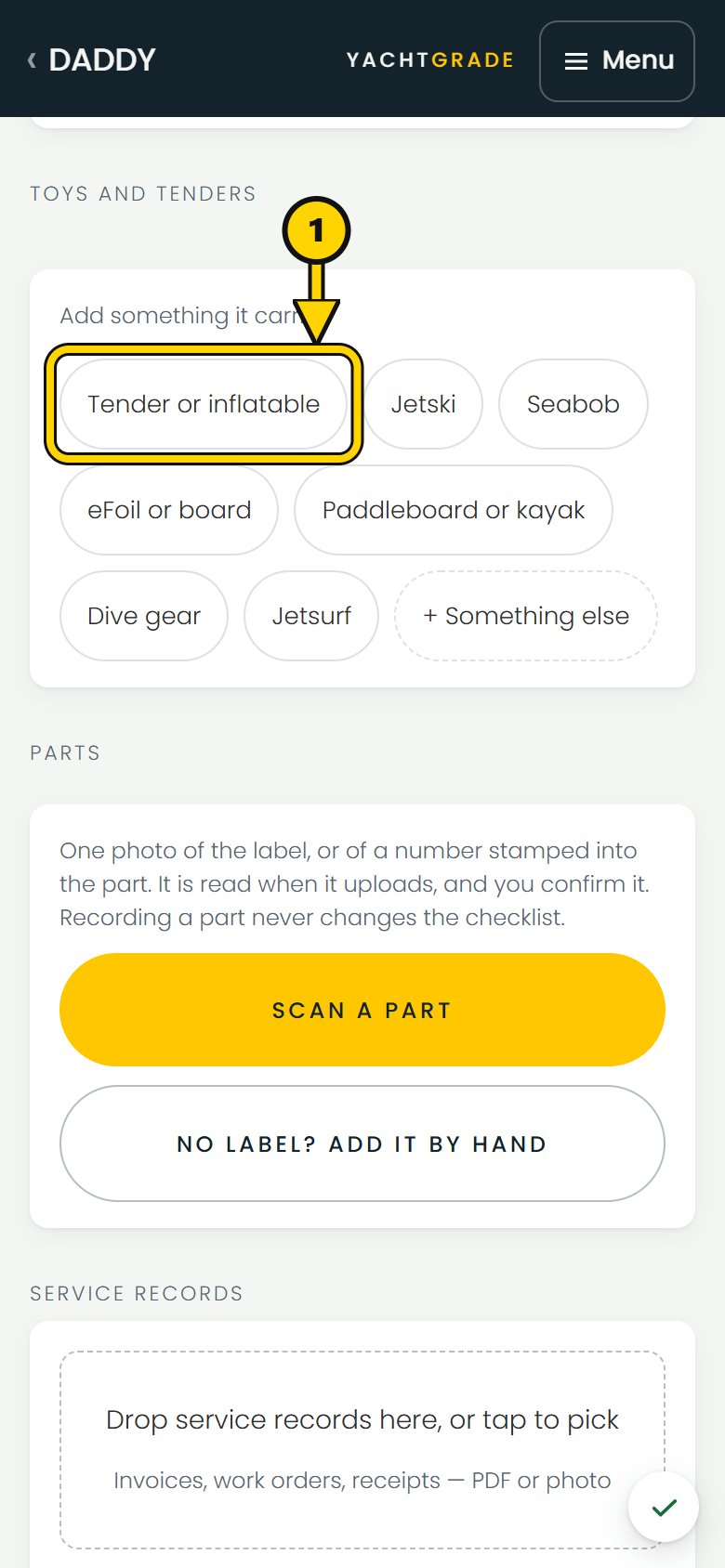
On the equipment screen, add equipment that drives checkpoints under Systems, including engines, generators, thrusters and air conditioning. Add equipment that gets serviced and insured but does not create checklist questions under Toys and tenders. For each unit, you can record its position, such as port, starboard or forward, and which named area aboard it is in. Twin engines and a genset do not share a duty cycle, and each keeps its own hour meter.
Why there is no “doesn't apply” checkbox
We built it this way on purpose, and it's worth saying why. A lot of inspection software hands the tech an N/A option and calls the problem solved. We don't have one. “This boat doesn't have that” is handled by the equipment profile. If the boat does not have a generator in its profile, generator checkpoints do not appear on its checklist. There's no toggle a tech can tap by habit, no question left blank because nobody remembered to mark it N/A, and no gap in the record for someone to argue about later. The equipment aboard determines which equipment-driven checkpoints appear.
That also means the fastest way to keep a checklist honest is to keep the equipment profile current. Sell the Seakeeper off a boat and forget to remove it here, and the boat keeps getting asked gyro questions for gear it no longer carries. The profile is the single place that has to be right.
Per-boat notes: where to find it on this boat
The same checkpoint means something different on every hull. "Aft bilge pump" is under a floor panel on one boat and behind a locker on another, and a tech who has never been aboard shouldn't have to hunt for it. On the boat's checklist screen, every checkpoint has a spot to say where it's checked on this boat specifically: "hatch under the table in the cockpit," or "pump is aft of the strainer, float switch zip-tied to the port stringer." The note appears under the question, so the next technician sees it while standing at the checkpoint.
The checkpoint's location also determines the order of the inspection. Engine room checks are grouped together, then checks in the lazarette, and so on, so the tech can work through one space at a time instead of going back and forth across the boat. Most checkpoints default to where that equipment usually lives. Change the location when this boat is different, and that change applies only to this boat.
The berth and why the address matters
On the boat's file, tap Edit beside the berth to record the marina or dock name, the slip or dock number, and a street address the technician can navigate to. The address appears on the calendar invite for each check and service, so a tech with an eight o'clock job can tap the event for directions instead of texting to ask which marina. It also places the boat's pin on your fleet map.
If a map lookup cannot find an address in a boatyard or mooring field, you can place the pin with coordinates instead. Long-press the spot in a map app and copy the two numbers it shows. Once the berth is placed, the address on the boat's file is tap-to-navigate.
Common questions
How do I add a new boat to my company's account in YachtGrade?
On Today, tap Add a boat, enter its name, make, model, year and length, and confirm. You land on its setup list next. Walk the boat and confirm what it carries there, so YachtGrade can build the right equipment-driven checkpoints into its checklist.
How many boats can I add as a beta member?
The first 100 beta members get 5 boats free for life, with no card required.
If you cannot add a boat because of your plan limit or permissions, YachtGrade shows what is stopping you. If it is a plan limit, you can ask your account owner to raise it.
What is an equipment profile and why does it matter?
It is the record of what a specific boat carries: engines, generators, thrusters, gyros, air conditioning and more. YachtGrade combines universal checkpoints with equipment-driven checkpoints from that profile. Keeping it accurate means the checklist asks about the equipment aboard instead of equipment the boat does not have.
Can I customize where a checkpoint is checked on a specific boat?
Yes. Every checkpoint can have a note showing exactly where it is found on that boat. The note is specific to that boat, so changing it on one hull does not change another. The checkpoint's location also determines the order a tech walks the boat, with checks grouped by place instead of section.
Once the boat is added and its equipment profile is built, the next step is the checklist: how universal and equipment-driven checkpoints come together, and how to customize what gets asked. That is covered in how boat inspection checklists are built. For the full checklist a score is built from, see the checklists page; for how completed checks turn into a score, see the health score page.
More how-to guides
YachtGrade was designed by a USCG 100-ton captain who spent five years managing, detailing, running and selling boats in South Florida, after four years building IT systems for businesses. Who built it →